Can a small Object Pascal HTTP server handle a modern OAuth 2.0 login and then talk to Microsoft’s cloud APIs? With the Daraja HTTP Framework, yes. Demo 13 shows the complete flow in a handful of source files.
You can find it here: demo/13_entra_msgraph (see the readme.md for the full description).
What the demo does
The demo implements the Microsoft identity platform and OAuth 2.0 authorization code flow.
When you start it, it:
- launches a local web server,
- requests an authorization code from Microsoft Entra,
- exchanges the code for an OAuth bearer token,
- uses the token for two Microsoft Graph API calls: reading the user’s profile data and sending an email.
The email’s content and recipient are configured in a JSON document in the unitRootResource. The same unit renders the index.html page after a successful login.
A note on security
The demo uses response_mode=form_post to receive the response. Unlikeresponse_mode=fragment or query, the browser never sees the access_token
parameter in the redirect URI, so the token isn’t accessible within the browser’s memory.
Requirements
- Daraja HTTP Framework
- Indy
- OpenSSL DLLs for Indy
- JsonDataObjects (only for Delphi)
Microsoft Entra accepts TLS 1.2 and 1.3, so use a recent OpenSSL build with Indy
to avoid handshake problems.
The source code already contains the configuration of an existing Entra app
registration, so the demo should run as it is. If you prefer to use your own
registration, follow the steps below.
Configure your own Microsoft Entra app registration
The demo is registered as a public client, so no client secret is needed.
Public clients can’t keep a secret, so the app doesn’t send one.
- Sign in to the Microsoft Entra admin center and go to
Entra ID > App registrations > New registration. - Enter a name (for example
Daraja OAuth demo). The demo uses theconsumers
endpoints, so choose Personal Microsoft accounts only. - Under Redirect URI, select the platform Mobile and desktop applications
and enterhttp://127.0.0.1/auth-response. It must matchREDIRECT_URIinMainUnit.pas. Click Register. - On the Overview page, copy the Application (client) ID.
- Open Authentication and make sure Allow public client flows is enabled.
- Go to API permissions > Add a permission > Microsoft Graph > Delegated permissions
and addUser.ReadandMail.Send. - In
MainUnit.pas, replace theCLIENT_IDconstant with your Application (client) ID.
Running it
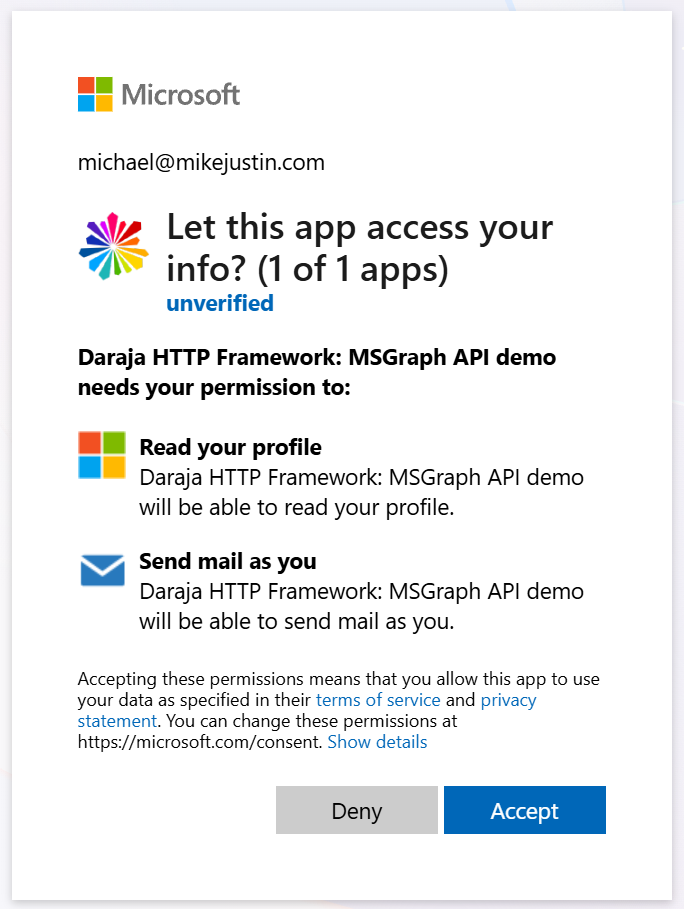
Compile and start the demo, open the local URL in your browser, sign in with a
personal Microsoft account, and accept the consent prompt. After the login you’ll
see the profile data, and the configured email is sent.
Why this demo matters
Many Object Pascal applications need to integrate with cloud services, and almost all
of them rely on OAuth 2.0. Demo 13 shows that Daraja handles both sides: it serves the
redirect callback and renders pages, while the application makes outbound API calls
with the resulting token.
Give it a try, and let me know how it works for you.